
Salesforce
With the Masset for Salesforce integration, you can sync Salesforce records into Masset, associate shares and content rooms with the right CRM records, and write engagement activity back to Salesforce. It is designed for teams that want CRM context inside Masset while still honoring Salesforce-side access controls.
Using the Masset for Salesforce integration, you can:
- Search synced Salesforce records from Masset when creating shares and content rooms.
- Associate those shares to Salesforce records so engagement stays tied to the right CRM entity.
- Write engagement activity back to Salesforce as either
Masset_Engagement__crecords or standard Salesforce Tasks. - Sync Salesforce users into Masset and link them to the right Masset users for attribution.
- Control sync behavior by choosing which Salesforce object types are enabled and reviewing sync history from the integration settings page.
Supported records
Masset can sync any queryable, layoutable Salesforce object with a Name field, including many standard objects and custom __c objects. Most teams start with Accounts, Contacts, and Opportunities, then enable additional object types as needed from the Salesforce integration’s Objects tab.
Salesforce features
The Salesforce integration is primarily a Masset-side workflow. After setup, sellers can search synced Salesforce records from Masset while creating shares or content rooms. When a record is selected, Masset stores the CRM association so downstream engagement can be tied back to the correct Salesforce record.
Admins can also choose where Masset engagement data lands in Salesforce. By default, Masset writes to the packaged Masset_Engagement__c custom object. If your team prefers to keep engagement activity on standard Salesforce records, you can instead write those events as Salesforce Tasks.
Salesforce users are synced automatically from the connected org. From the integration details page, admins can enable automatic email-based association or manually map Salesforce users to Masset users. That mapping ensures search, share attribution, and engagement write-back stay tied to the correct seller.
Masset expects the Salesforce integration to expand over time. As functionality grows, Masset will continue to honor Salesforce visibility rules and Masset permissions when deciding what users can search, view, and associate.
Installation
To install the Salesforce Integration, the installer should be both a Masset Admin and a Salesforce System Administrator. Before starting the org connection, Masset recommends deciding which Salesforce user will act as the dedicated integration user.
To launch the guided setup flow from Masset:
- Log in to Masset.
- Go to Admin > Integrations.
- Click Add Account.
- Select Salesforce.
Then complete the guided setup:
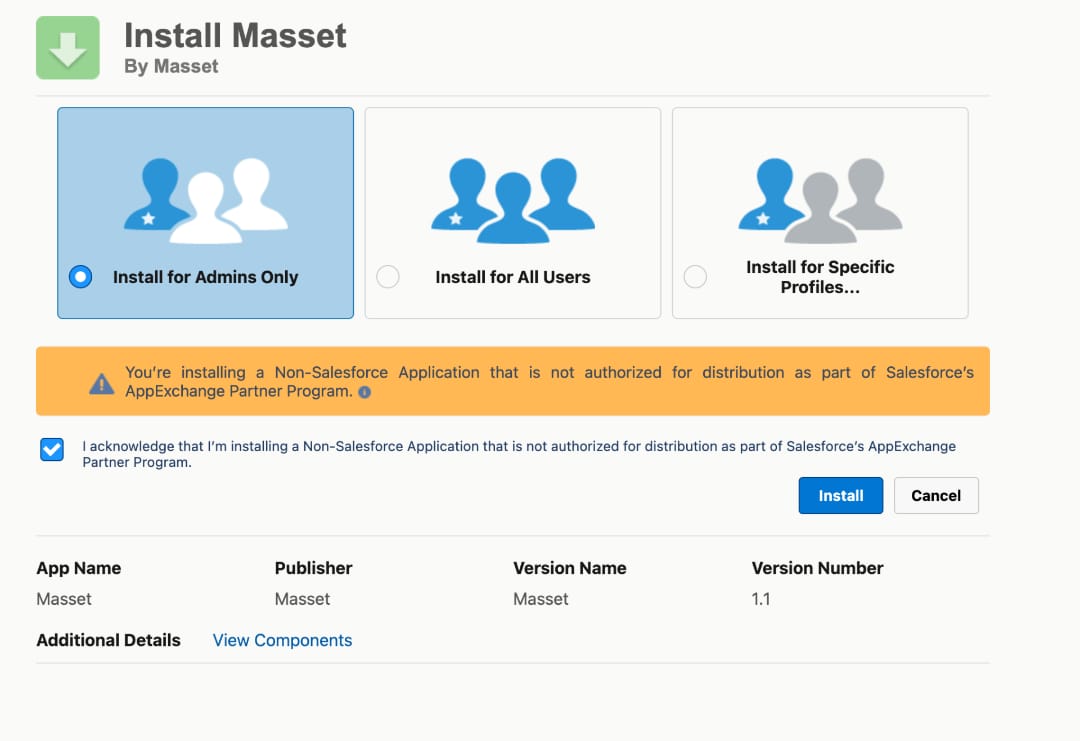
Install the Masset package in Salesforce
- Click Install in Salesforce from the setup flow.
- Log in to Salesforce as a System Administrator.
- Choose Install for Admins Only.
- Wait for Salesforce to confirm the install completed.
- Verify that Masset appears under Installed Packages in Salesforce Setup.
The managed package adds the Masset_Engagement__c object, the Masset Integration User and Masset Salesforce App User permission sets, and the Masset Salesforce Foundation External Client App.
Assign the integration user permission set
- In Salesforce Setup, open Users.
- Open the user that should act as the Masset integration user.
- Click Permission Set Assignments > Edit Assignments.
- Add Masset Integration User and save.
Masset recommends using a dedicated integration user so engagement writes do not break when a named employee leaves or changes roles.
Assign the app user permission set to your team
- In Salesforce Setup, open Permission Sets > Masset Salesforce App User.
- Click Manage Assignments > Add Assignments.
- Select the Salesforce users who should be able to connect Masset to their Salesforce identity.
- Save the assignment list.
This permission set allows each seller to authorize Masset to act on their behalf when their Masset and Salesforce identities are linked.
Connect your Salesforce org to Masset
- Return to the Masset Salesforce setup flow.
- Click Connect Salesforce Org.
- Sign in as the integration user you configured earlier.
- Review the requested access and click Allow.
This is the org-level OAuth handshake between Masset and Salesforce. It establishes trust using the External Client App installed with the package.
If Salesforce shows This app isn’t installed for your user, confirm that the package install completed and that the integration user has the Masset Integration User permission set assigned.
Link Salesforce users to Masset
- Open the Salesforce integration details page in Masset.
- Review the synced Salesforce users.
- Enable automatic email-based association, or manually link any users that do not auto-match.
- Confirm every seller who should create or own CRM-linked shares is linked to the correct Salesforce user.
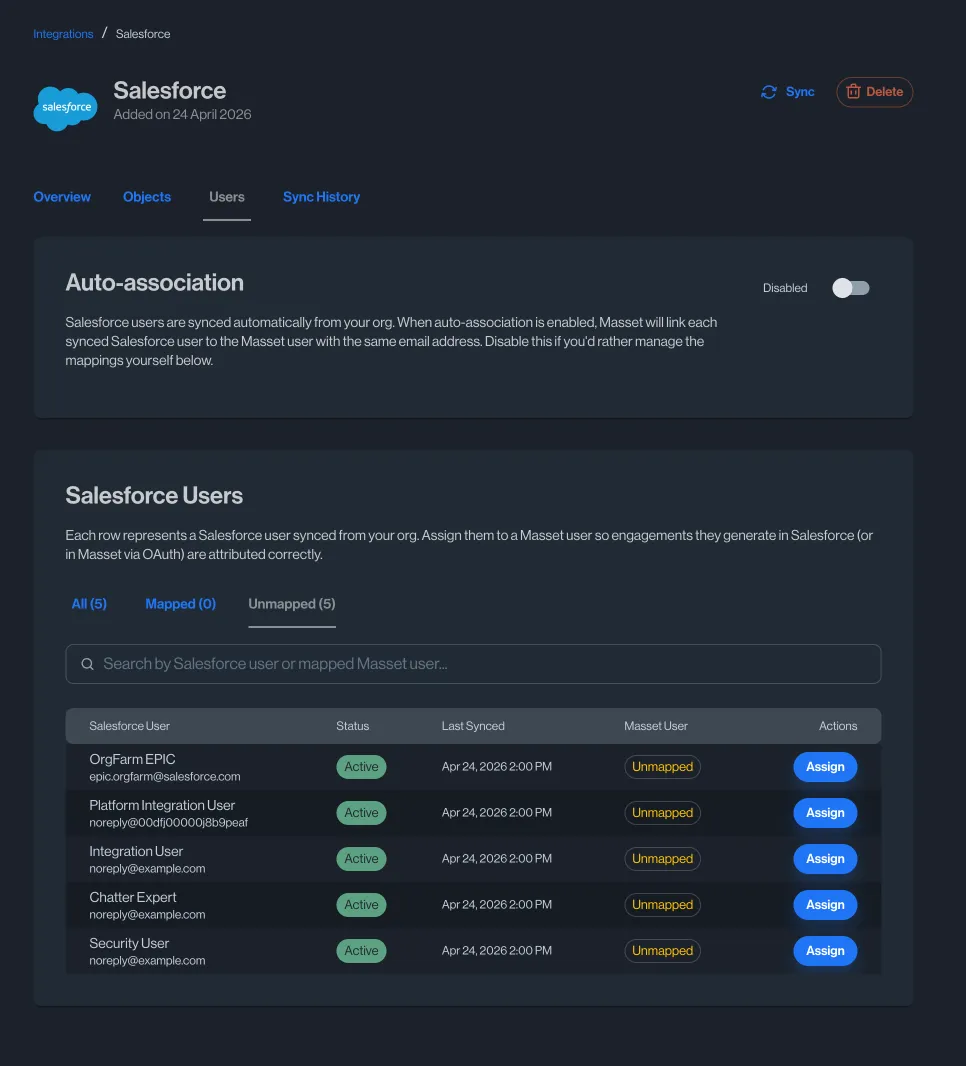
After the org connection is complete, open the Salesforce integration details page in Masset to choose which Salesforce object types to sync, trigger a manual sync if needed, review sync history, and manage user mappings.
FAQ
What OAuth scopes does the integration request?
The Masset for Salesforce integration requests the following OAuth scopes from Salesforce:
What Salesforce data does Masset read?
Masset only reads the Salesforce data needed for sync, search, and attribution:
- Org and user identity during OAuth connection, including org id, user id, email, and instance details.
IdandNamefor any enabled Salesforce object types that you choose to sync.- Salesforce user records used for user linking:
Id,Email,FirstName,LastName, andIsActive. - Record-access checks via Salesforce’s
UserRecordAccessmodel so Masset can honor Salesforce sharing rules when returning search results.
What Masset data is written back to Salesforce?
Masset never uploads the raw asset file into Salesforce. When engagement write-back is enabled, Masset only writes event metadata such as the event type, event timestamp, Masset event id, associated Salesforce object type and record id, and the Masset content room id. If the target record name is already known to Masset, it may also be included for reporting convenience.
Depending on your chosen engagement target, that data is written either to:
- the packaged
Masset_Engagement__ccustom object, or - a standard Salesforce Task on the associated record.
Do users need to connect their own Salesforce account?
Admins can link users in two ways:
- Enable automatic association by matching Salesforce and Masset users by email.
- Manually map Salesforce users to Masset users from the Users tab in the Salesforce integration settings.
Users can also connect their own Salesforce account directly from Masset. When they do, searches run under that user’s own Salesforce token. If they have only been admin-mapped, Masset still filters results using Salesforce’s record-access checks so users only see records they can actually read.
Can I limit what Masset syncs from Salesforce?
Yes. Admins choose which Salesforce object types are enabled for sync from the Objects tab in the Salesforce integration settings. Masset only syncs enabled object types, and only syncs the Id and Name fields for those records.
What permissions does the integration user need if I use Salesforce Tasks as the engagement target?
If you switch the engagement target from Masset_Engagement__c to Salesforce Task, the integration user must have Create, Read, and Edit access on Salesforce Tasks.
Where can I submit feedback?
If you have questions, feedback, or want help with setup, reach out to support@getmasset.com.